Inspector
Click an element to change it, or leave a note and let the agent change it.
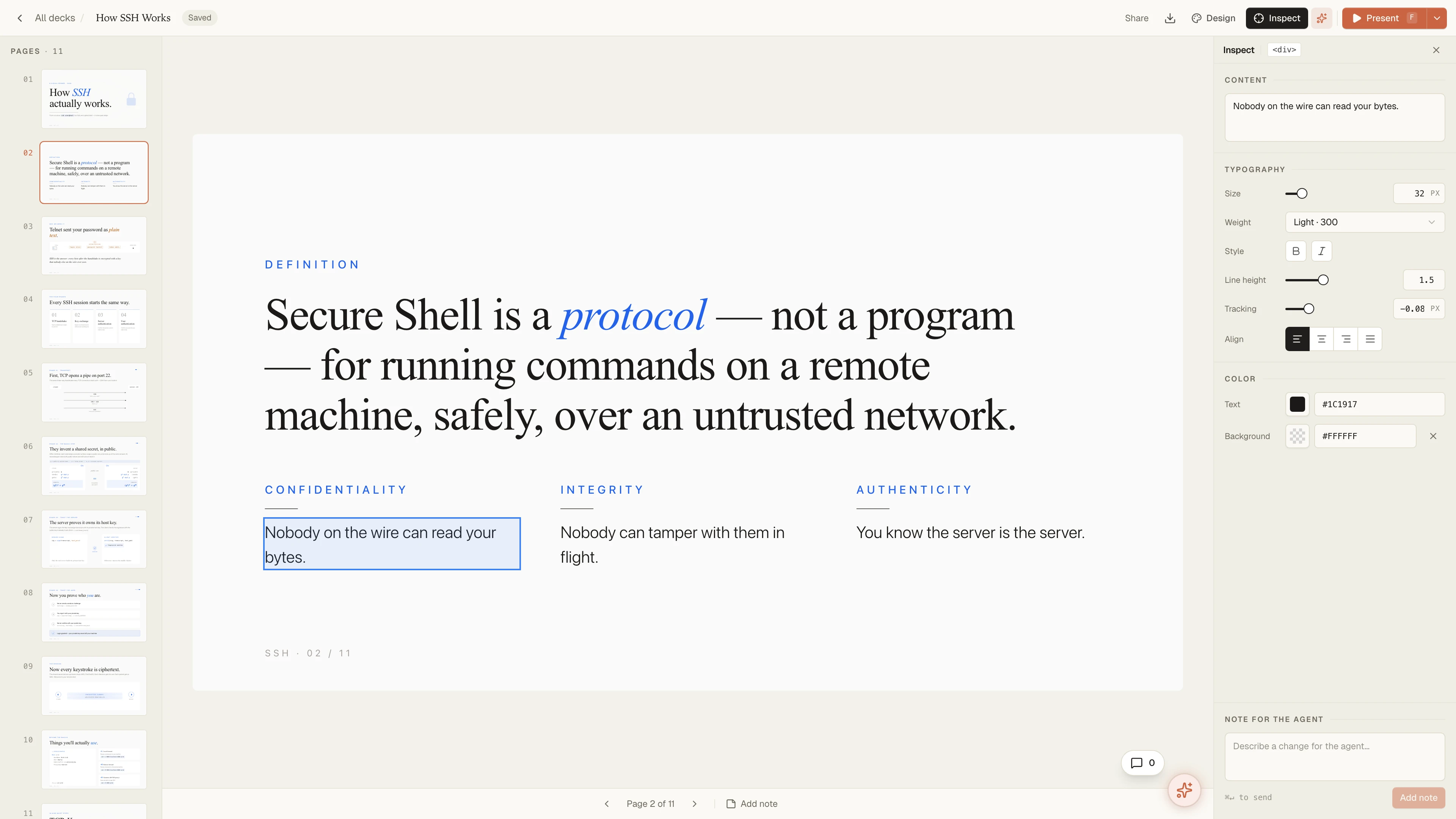
The inspector is part of the dev server, not a plugin. Turn on Inspect in the slide header and elements on the canvas become selectable; click one and a property panel opens beside it.
It exists because two different kinds of correction happen while you look at a deck, and only one of them is worth typing into an editor.
Change it yourself
For anything you can point at and specify, the panel is faster than finding the line:
- Content — the element's text, edited in place.
- Typography — family, size, weight, style.
- Colour — text and background.
- Images — swap the source for any file in the deck's assets, and crop it on the canvas.
Edits do not hit the disk as you make them. They accumulate in a draft, with an unsaved-changes bar at the foot of the canvas, until you press Save — at which point the whole batch lands as one write and one HMR pass. Twenty small fixes cost one reload, and Discard throws all of them away.
Describe it instead
Some changes are a sentence to say and a paragraph to specify. "This heading should carry the accent", "two of these columns are doing the same job", "lose the icon" — you know what you want, you just do not want to hand-edit your way there.
Select the element, type into the note field at the foot of the panel, and press Add note:
make this title the accent colour
The note is written into the source as an @slide-comment marker anchored to
that element. It moves with the element if the file is reformatted, it is
invisible when the deck renders, and it survives being committed — so notes
from a rehearsal are still there the next morning.
Collect a few, then hand them over in one go: run
/apply-comments and the agent works through the
markers and clears them as it goes. In the studio the same thing is a
Apply all button.
Which to reach for
If you would finish the edit faster than you could describe it, edit it. If describing it is the easy part, leave a note. Mixing both in one pass over a deck is the intended way to use it.